
VENTION 6-in-2 USB C Hub
4.3Editor score
Magnetic detachable connector
80Gbps Thunderbolt transmission
140W maximum PD support
Explore our expert guide comparing the top docking stations for MacBook Neo, evaluating port selection, charging power, and display support for every workflow.
Finding the right docking station for MacBook Neo can transform your workspace into a powerful productivity hub. Whether you need multiple displays or fast data transfer, the right hub connects all your peripherals seamlessly to your laptop.
We compared ten leading models based on port variety, charging speed, video output capabilities, and build quality. Our analysis ensures you find a reliable solution that matches your specific professional or creative needs without compatibility issues.
Each pick highlights unique strengths like dual monitor support or ultra-fast Thunderbolt speeds. Keep in mind that product availability and pricing change frequently, so verify current details before making your final purchase decision today.
4.3Editor score

4.5Editor score
4.1Editor score
This side-by-side comparison highlights key specifications across all ten selected docking stations to help you quickly identify the model that best fits your specific connectivity and power requirements.





The Anker Laptop Docking Station is a robust 8-in-1 hub designed to expand connectivity for MacBook Neo users. It delivers dual HDMI output up to 4K@60Hz and includes essential ports like Ethernet and SD card reader for seamless workflow integration.
We may earn a commission when you buy through this link, at no additional cost to you.
With 85W Power Delivery charging, this dock keeps your laptop powered while you work on multiple tasks. The dual HDMI ports allow for expanded productivity, though MacOS limits external displays to mirrored mode on base chip models.
While the Ethernet port offers stable wired internet and the SD card reader supports fast media transfers, some users might find the MacOS mirroring limitation restrictive for true multitasking. Still, it remains a top choice for most users.
Ideal for professionals needing reliable dual screen setups or quick data access, this dock balances performance and price effectively. If you want a solid all-rounder from a trusted brand, this Anker hub is highly recommended.
Connect two 4K displays for expanded workspace, though MacOS mirrors them on base models without M-series Pro support.
Enjoy 85W pass-through charging and high-speed SD card access for smooth daily work sessions.
We may earn a commission when you buy through this link, at no additional cost to you.
The iVANKY FusionDock 1 stands out with dual 4K@120Hz support for compatible Mac models, offering smooth visuals for creative work. It includes a robust 150W adapter delivering 96W laptop charging and ample data transfer capabilities.
We may earn a commission when you buy through this link, at no additional cost to you.
With four USB 3.0 ports and a Gigabit Ethernet port, this dock connects everything from external drives to wired networks reliably. The SD and TF card slots support high-speed transfers, ideal for photographers or editors.
Despite its power, base M1/M2/M3 chips restrict external displays to single mode. Additionally, its higher price might not fit every budget. However, performance-conscious users will appreciate the speed and connectivity options.
If you need high refresh rate display support and fast data transfers for professional creative tasks, this dock delivers exceptional performance. It remains a strong contender for those willing to invest in premium features.
Dual 4K@120Hz support ensures smooth visuals for video editing and gaming on compatible M-series models.
96W laptop charging and 5Gbps USB 3.0 transfers keep your workflow efficient without bottlenecks.
We may earn a commission when you buy through this link, at no additional cost to you.
The Anker Nano Docking Station offers a unique 13-in-1 design with a detachable 6-in-1 hub perfect for home and travel. It supports triple monitor setups via HDMI and DisplayPort for maximum screen real estate.
We may earn a commission when you buy through this link, at no additional cost to you.
Delivering up to 100W Power Delivery charging, this dock powers your laptop while handling multiple peripherals including USB-A and USB-C ports. The 10Gbps data transfer allows rapid file movement for large projects.
While versatile, the setup requires careful cable management and might be overkill for simple tasks. MacOS users are limited to mirrored external displays, which may restrict true multi-monitor workflows on base chips.
For professionals needing a hybrid solution that works both at a desk and on the go, this dock is unmatched. Its flexibility justifies the cost for users who prioritize adaptability in their daily work.
Use the full dock at home and detach the 6-in-1 hub for travel without carrying separate devices.
Connect three monitors for enhanced productivity, though MacOS mirrors displays on base chip models.
We may earn a commission when you buy through this link, at no additional cost to you.
Designed specifically for MacBook Air and Pro models, this hub offers ultra-compact expansion with HDMI and USB-C ports. It supports 5K display output and 100W charging to keep your laptop powered up.
We may earn a commission when you buy through this link, at no additional cost to you.
The 7-in-2 layout includes two USB-C and two USB-A ports plus SD and microSD slots for versatile connectivity. It avoids blocking the MagSafe port, making it convenient for daily use without cable clutter.
However, note that this model is not compatible with MacBook Neo. Its limited port count also restricts heavy multitasking. For compatible models, it offers excellent portability and reliable performance.
If you own a standard MacBook Air or Pro and need a sleek solution, this hub is a top pick. Its compact design and high-speed support make it ideal for professionals on the move.
Ultra-compact design fits easily in bags while providing essential ports without bulk.
5K@60Hz HDMI support ensures crisp visuals for detailed work or entertainment.
We may earn a commission when you buy through this link, at no additional cost to you.
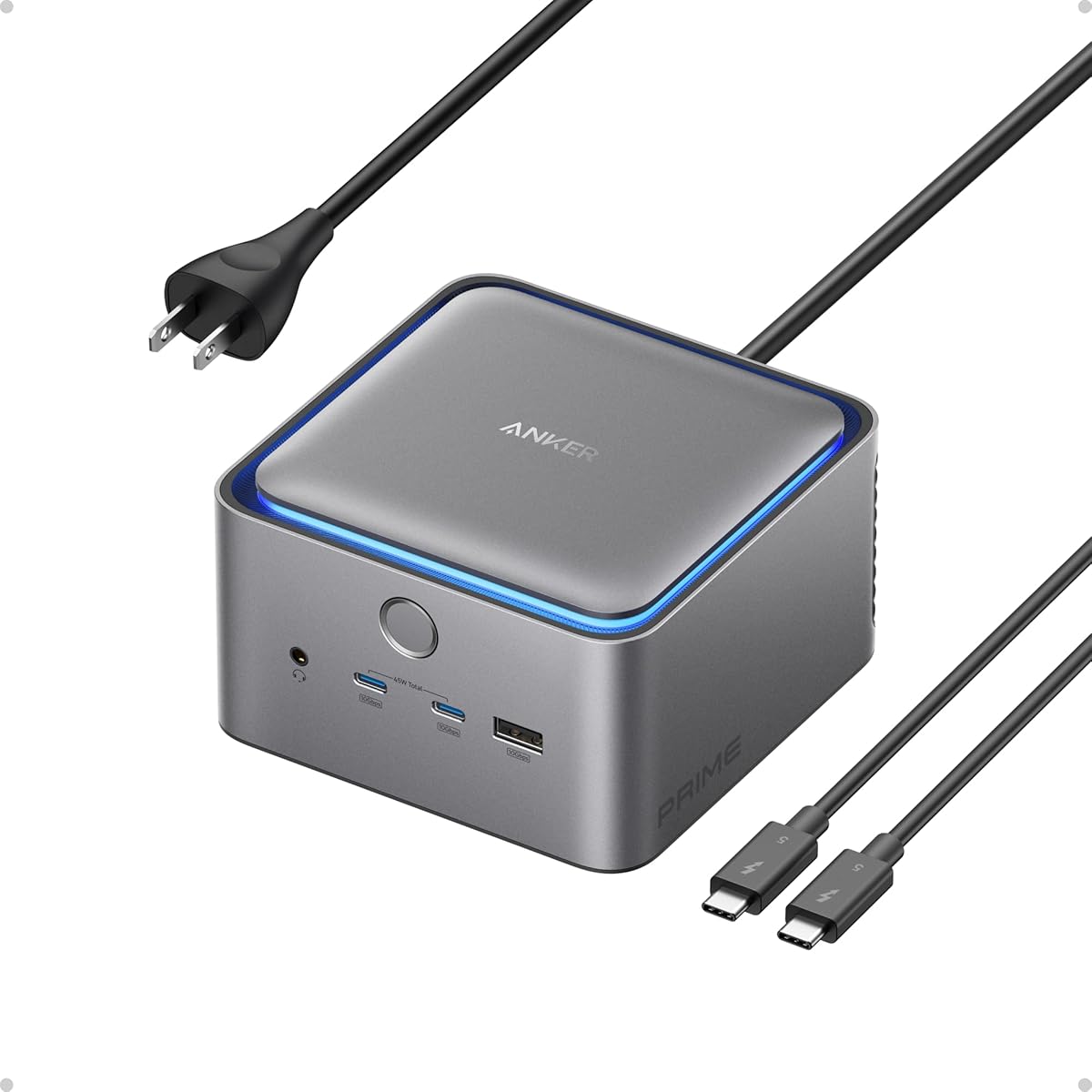
The Anker Prime Docking Station provides 14-in-1 connectivity to manage multiple devices simultaneously. With 160W total output, it charges up to four devices at once while supporting dual HDMI displays up to 4K.
We may earn a commission when you buy through this link, at no additional cost to you.
It includes versatile ports for data transfer at up to 10Gbps, ensuring quick file movements across external drives. The design supports Thunderbolt and USB4, making it future-ready for high-performance laptops.
While its port selection is impressive, MacOS limits external displays to mirrored mode on base models. Linux users are also excluded from compatibility. However, Windows and ChromeOS users will find it robust.
For power users needing to charge multiple devices and connect extensive peripherals, this dock excels. Its comprehensive port layout and strong charging capabilities make it a top choice for busy workstations.
Charge up to four devices simultaneously with 160W total output for efficient power management.
Fourteen ports including dual HDMI and multiple USB-C options cover every possible connection need.
We may earn a commission when you buy through this link, at no additional cost to you.
The VENTION 6-in-2 USB C Hub features a unique magnetic detachable connector designed for seamless plug-and-play use. It supports blazing-fast 80Gbps bandwidth, ideal for high-refresh rate displays and fast data transfers.
We may earn a commission when you buy through this link, at no additional cost to you.
With 140W pass-through charging and 8K display output, it handles demanding tasks while keeping your device powered. Its magnetic design prevents wear and tear, making it durable for daily use in offices or travel.
Users with MacBook cases might face fit issues, requiring workarounds. The 8K output requires a Thunderbolt-enabled host. Despite these minor drawbacks, its affordability and speed make it a top budget option.
If you need high bandwidth and display support without breaking the bank, this hub is an excellent choice. Its innovative magnetic design and strong performance justify its value for budget-conscious professionals.
Detachable magnetic connector simplifies plugging and unplugging for easy and wear-free daily use.
80Gbps bandwidth supports 8K displays and rapid file transfers for demanding workflows.
We may earn a commission when you buy through this link, at no additional cost to you.
The Anker Prime TB5 Docking Station delivers cutting-edge Thunderbolt 5 performance for high-end professional workflows. It offers 8K@60Hz display support and 140W fast charging to power your laptop while handling massive data transfers.
We may earn a commission when you buy through this link, at no additional cost to you.
Equipped with active cooling, it maintains optimal performance under heavy loads without overheating. With 14-in-1 ports including HDMI and SD readers, it connects everything seamlessly for seamless creative and technical tasks.
The main limitation is the very high price and limited host compatibility with older laptops. Thunderbolt 5 is still new, so compatibility might be restricted. Still, it offers unmatched speed for future-proof setups.
For professionals needing the absolute fastest transfer rates and display resolution, this dock is unrivaled. Its cooling system and comprehensive ports make it a top choice for high-performance computing.
Thunderbolt 5 provides massive bandwidth for transferring large files in seconds without bottlenecks.
Support for 8K@60Hz visuals ensures ultra-sharp image clarity for detailed design or editing work.
We may earn a commission when you buy through this link, at no additional cost to you.
The TobenONE Docking Station Stand combines vertical laptop storage with dual 4K HDMI connectivity. It includes a built-in 100W charger providing 87W laptop charging for reliable all-day power.
We may earn a commission when you buy through this link, at no additional cost to you.
With ports for USB-C, Ethernet, and SD card readers, it connects all peripherals needed for a clean workspace. The vertical stand saves desk space while elevating your laptop for better airflow and ergonomics.
While the VGA port supports legacy projectors, it is increasingly obsolete. Additionally, MacOS limits dual displays on base chip models. However, its all-in-one design makes it a practical office solution.
Ideal for small desks needing space-saving organization and dual screens, this dock and stand combo delivers great value. Its robust charging and versatile ports support diverse workflows effectively.
Vertical stand saves desk space while keeping your laptop elevated and better airflow for cooling.
Dual 4K@60Hz HDMI supports crisp visuals for editing and presentations with reliable performance.
We may earn a commission when you buy through this link, at no additional cost to you.
The TobenONE 18-in-2 Docking Station delivers maximum connectivity with 18 ports including dual HDMI, USB-C, and SD readers. It includes a 150W adapter delivering 100W fast charging to keep your MacBook running smoothly.
We may earn a commission when you buy through this link, at no additional cost to you.
With 2.5Gbps Ethernet and fast data transfer ports, it handles heavy network and file loads efficiently. The dual 4K@60Hz support ensures clear visuals for video editing and presentations on compatible models.
MacOS limits dual displays on base chips, which may reduce its value for some users. Its price point is also higher compared to similar hubs. Still, its sheer number of ports covers nearly every need.
If you need a comprehensive hub for complex workstations with many peripherals, this model excels. Its powerful charging and extensive connectivity make it a great fit for professional environments.
Eighteen ports ensure you can connect every peripheral, monitor, and accessory without needing extra hubs.
2.5Gbps Ethernet and 100W charging keep your workflow uninterrupted and connected reliably.
We may earn a commission when you buy through this link, at no additional cost to you.
The Plugable Thunderbolt 4 Dock offers reliable plug-and-play connectivity for M4/M5 and compatible MacBooks. It supports dual 4K HDMI displays and 100W charging to keep your device powered and productive.
We may earn a commission when you buy through this link, at no additional cost to you.
With 13 ports including USB-A and SD UHS-II slots, it handles various peripherals seamlessly without driver installation. Its aluminum build ensures durability and efficient heat dissipation during extended use.
Base M1/M2 models support only one external display, limiting multi-monitor use. The price is also relatively high compared to competitors. However, its reliability and lifetime support make it worth the investment.
For users prioritizing stable connectivity and trusted support, this dock is an excellent choice. Its robust Thunderbolt performance and durable design suit professional environments effectively.
Plug-and-play setup requires no drivers ensuring quick and stable connections for daily tasks.
Dual 4K 60Hz displays enable seamless multitasking for video editing and creative work.
We may earn a commission when you buy through this link, at no additional cost to you.
Selecting the right docking station depends on your specific display, charging, and peripheral needs. Consider these key factors to find a model that perfectly fits your workflow.
Check if the dock supports the number of external monitors and resolutions you require. Look for HDMI and DisplayPort outputs that match your monitor specs like 4K@60Hz or 8K@60Hz.
Prioritize docks with high refresh rate support for smooth visuals, ensuring they match your laptop's display capabilities for seamless performance.
Ensure the docking station provides sufficient Power Delivery wattage to charge your laptop while running all peripherals. Most MacBook models require at least 85W or 100W for optimal charging.
Choose a dock with enough total output to power connected devices simultaneously without slowing down your laptop's battery recharging process.
Evaluate the number and type of USB, Ethernet, and card reader ports to match your peripheral needs. A wide selection prevents needing multiple adapters during daily use.
Look for high-speed USB-C or USB-A data transfer ports to ensure quick file access and smooth performance with external drives.
Select a dock that matches your laptop's connection type, such as Thunderbolt 3, Thunderbolt 4, or USB4, for maximum speed. Faster bandwidth ensures no lag during video streaming or large file transfers.
Thunderbolt 5 offers the fastest speeds but requires compatible hardware, so verify your laptop supports the dock's connection standard before buying.
Choose docks with aluminum or sturdy materials to ensure longevity and efficient heat dissipation. A well-built dock will handle daily plug-and-play without wear and tear.
Consider docks with active cooling systems if you plan heavy usage to prevent overheating during extended work sessions or multitasking.
Verify that the dock is fully compatible with your operating system, including macOS features like external display handling. Some docks limit multi-monitor options on base chip models.
Check for Linux or Windows support if you dual-boot, since not all docks work well across different operating systems without issues.
Balance your budget with the features offered, avoiding overpaying for unused capabilities. Premium docks cost more but offer future-proofing and advanced connectivity options.
Compare total value including warranty and included accessories to ensure you get a reliable product that meets your needs over time.
Consider the physical size of the dock, especially if you work remotely or travel frequently. Compact models save desk space and fit easily into bags.
Some docks feature detachable hubs or magnetic connectors for enhanced portability, allowing flexible use across multiple work environments.
Start by connecting the dock to your MacBook using the included USB-C or Thunderbolt cable. Plug in the power adapter to ensure stable charging and performance for all connected devices.
Connect your external monitors, peripherals, and network devices to the appropriate ports on the dock. Use the HDMI or DisplayPort outputs for video and USB ports for keyboards or mice.
To maintain your dock, keep it in a well-ventilated area to prevent overheating. Regularly check connections and dust ports to ensure long-term reliability and consistent performance.
Most docking stations support dual external monitors, but MacBook Neo base chip models may limit this to mirrored displays. Check compatibility with your specific model before buying.
A minimum of 85W Power Delivery is recommended for efficient charging while using peripherals. Higher wattage ensures full performance without battery drain.
Thunderbolt 5 docks require compatible laptops with Thunderbolt 5 ports. Older MacBook Neo models may not support this highest speed standard fully.
Choose HDMI if your monitors use HDMI cables; otherwise use DisplayPort for higher refresh rates. Ensure the dock supports your desired resolution on both ports.
Many docks support Windows but some have limited Linux compatibility. Check the product details for operating system support before purchasing.
Most docking stations are plug-and-play and require no drivers. Some advanced features might need software depending on the OS.
Thunderbolt offers faster data speeds and video bandwidth than USB-C. It also supports daisy-chaining for multiple devices easily.
High-quality docks support multiple USB ports simultaneously. Some bandwidth sharing may occur but high-end models minimize this impact.
The top picks like the Anker Laptop Docking Station and VENTION USB C Hub provide strong performance for diverse workflows. Each model balances connectivity, charging, and display support to meet professional needs effectively.
Prioritize the features that matter most to you, whether it is Thunderbolt speed, port variety, or compact size. Selecting based on your specific use case ensures the best value for your investment.
Always verify the latest pricing and product availability before making a purchase. Regularly review compatibility notes to ensure the dock matches your MacBook Neo model and workflow requirements accurately.