
RubensTab T11 Pro
4.4Editor score
10.1 inch Full HD IPS screen
Standalone operation without computer
Pre-installed professional drawing apps
Finding the right device for digital art can be challenging. You need a responsive screen, a precise stylus, and reliable software support. This guide explores ten excellent iPad alternatives that cater to artists of all skill levels and budgets.
We evaluated each product based on display quality, pen performance, battery life, and overall versatility. Our analysis includes both standalone tablets and devices requiring a computer connection. Each pick offers unique benefits for sketching, painting, or professional illustration workflows.
Every section highlights key features, pros, cons, and ideal use cases for each device. Remember that availability and pricing may vary over time. We encourage you to verify current details before making your final purchase decision for your creative journey.
4.4Editor score

4.4Editor score

4.5Editor score
As an Amazon Associate we earn from qualifying purchases.
This table provides a quick side-by-side overview of the ten featured devices. Use it to compare screen sizes, key specifications, and connectivity options at a glance before diving into detailed reviews.



The Wacom MovinkPad 11 stands out as the top pick for professional artists seeking a standalone solution. With a 4.4 rating, it delivers exceptional pen performance and a unique paper-like display surface that feels natural under the stylus.
We may earn a commission when you buy through this link, at no additional cost to you.
Its Pro Pen 3 offers 8192 pressure levels and tilt support without needing batteries. The device includes Canvas app access and two years of Clip Studio Paint Debut, making it ready for serious creative work immediately upon unboxing.
While the price is higher than budget options, the build quality and software integration justify the investment. The matte etched glass reduces glare and fingerprints significantly, allowing focus on the art itself rather than screen distractions.
Artists who value precision, portability, and a premium drawing feel should consider this device. It bridges the gap between mobile convenience and professional-grade input, making it an ideal primary tool for illustrators and designers.
Tap and hold the pen to launch the canvas app instantly. This feature mimics opening a physical sketchbook, removing friction from your creative workflow.
The slim Pro Pen 3 includes side buttons and replaceable nibs. Its ergonomic design ensures comfort during long sessions while maintaining precise tracking across the screen.
We may earn a commission when you buy through this link, at no additional cost to you.
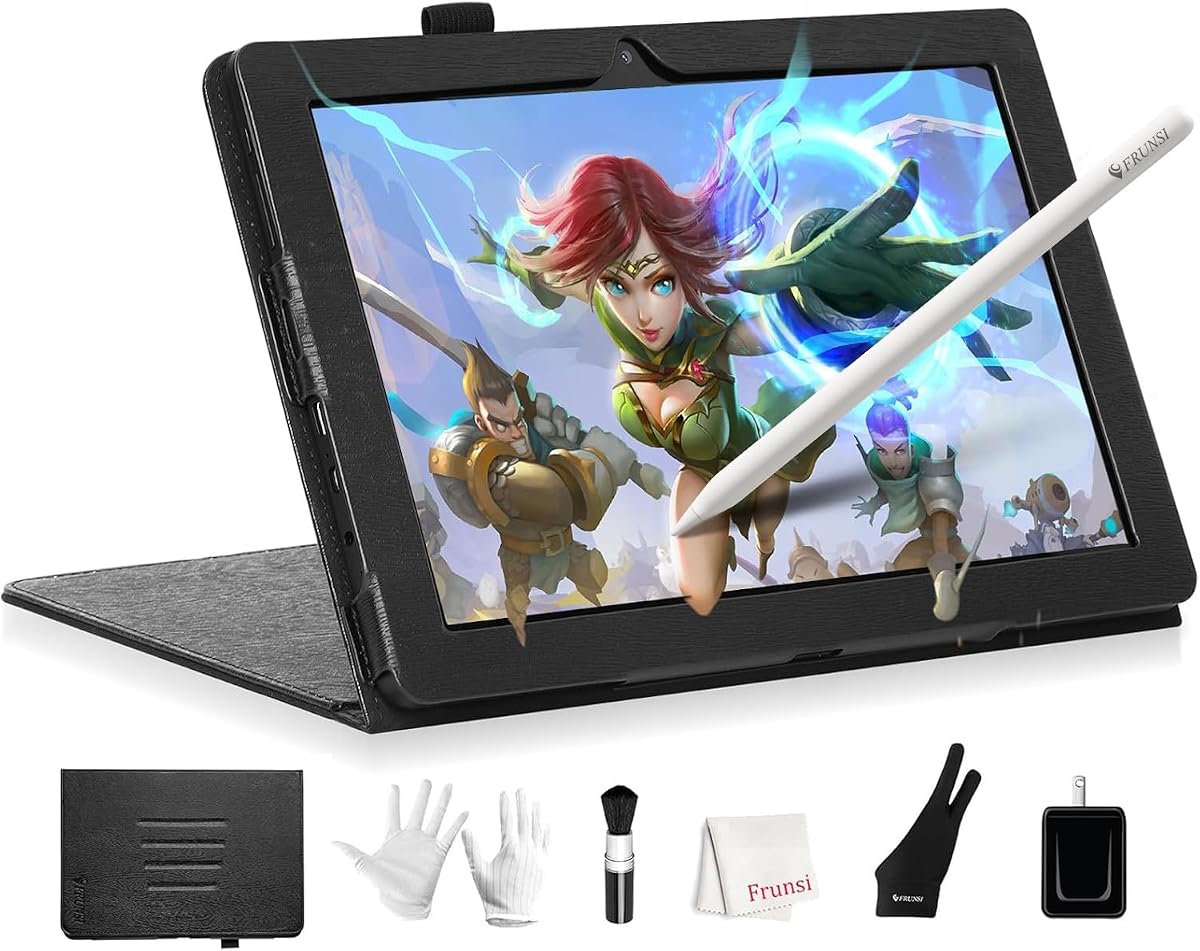
The RubensTab T11 Pro offers an accessible entry point for those exploring digital art without a large budget. Rated 4.4, it provides a fully self-contained experience with a vibrant Full HD screen and included professional drawing applications.
We may earn a commission when you buy through this link, at no additional cost to you.
Users can start creating immediately without pairing with a laptop. The high-sensitivity pressure pen delivers fluid strokes, and the included stand case ensures stability for both desktop and travel usage scenarios effectively.
Battery life is modest but sufficient for typical creative sessions. While the screen is smaller than premium models, the resolution remains sharp enough for detailed sketching and design work on the go.
This device is perfect for students or hobbyists needing a portable, affordable drawing tool. It removes the complexity of cable setups while delivering essential features for learning digital illustration fundamentals and daily creative tasks.
Pre-installed apps remove the need for immediate setup. You can focus on drawing right after powering on, making it ideal for spontaneous creative moments.
The lightweight build and included stand make it easy to carry anywhere. Whether in a classroom or studio, the setup adapts quickly to your environment.
We may earn a commission when you buy through this link, at no additional cost to you.
The HUION KAMVAS Pad 12 combines powerful performance with a stunning 2K+ display for professional creators. With a 4.5 rating, it features advanced PenTech 4.0 stylus support and a 90Hz refresh rate for ultra-smooth drawing experiences.
We may earn a commission when you buy through this link, at no additional cost to you.
The 12.2 inch screen offers more vertical space than standard tablets, improving workflow efficiency. Pre-loaded with apps like Clip Studio Paint and HiPaint, it supports complex projects with its 8-core processor and generous RAM.
Battery life exceeds many competitors, lasting up to a full day on a single charge. The nano-etched glass surface reduces glare effectively, ensuring visual clarity even in bright environments during outdoor sketching sessions.
This tablet suits professionals needing high fidelity and speed. If you prioritize display quality, color accuracy, and long sessions without tethering to a computer, this premium option delivers a comprehensive and reliable creative environment.
The 90Hz refresh rate makes strokes appear instantly. This fluidity reduces lag perception, making digital drawing feel more like traditional media.
Factory calibration ensures accurate colors right out of the box. With 99 percent sRGB coverage, your designs look true to life on screen.
We may earn a commission when you buy through this link, at no additional cost to you.
The HUION Kamvas Pro 16 delivers a spacious 15.6 inch canvas for detailed illustration work. Its high color accuracy and full-laminated screen make it suitable for professional designers needing precise visuals and ergonomic workflow features.
We may earn a commission when you buy through this link, at no additional cost to you.
The included touch bar and express keys provide quick access to common shortcuts like brush sizing. This hardware integration saves time, reducing interruptions during intensive creative sessions on a desktop or studio setup.
While it requires a computer, the cable management is simplified with a 3-in-1 USB-C connection. The adjustable stand reduces physical strain, ensuring comfort even during extended periods of drawing or digital painting activities.
Ideal for studio environments where mobility is less critical than screen real estate. If you work on complex illustrations or require high color fidelity regularly, this pen display offers a robust and productive workspace.
With 120 percent sRGB coverage, your artwork appears vibrant and true to life. This is essential for print-ready design work and professional color correction.
Hardware keys allow quick adjustments without menu diving. This streamlined control keeps your attention focused on the art rather than interface navigation.
We may earn a commission when you buy through this link, at no additional cost to you.
The RubensTab T14 expands on the mobile experience with a 14.1 inch display for more comfortable drawing. It remains fully standalone, allowing users to sketch anywhere without relying on a PC or laptop connection.
We may earn a commission when you buy through this link, at no additional cost to you.
Its Octa-Core CPU ensures smooth operation across multiple apps simultaneously. The 10000mAh battery supports longer sessions, and the included stand case adds versatility for both handheld use and stable desktop positioning.
Pre-installed tutorials and drawing apps make it accessible for beginners. The pressure-sensitive pen delivers natural strokes, though it does not include advanced tilt features found in higher-end devices.
This device is perfect for those wanting more screen space than 10 inch models. If you value portability but need more canvas area for detailed work, this balance of size and independence makes it a strong contender.
The 14.1 inch display provides ample room for multi-layered art. This size is ideal for detailed sketching while remaining light enough to carry daily.
Included tutorials help new artists build skills quickly. This educational support reduces the learning curve for digital tools and techniques.
We may earn a commission when you buy through this link, at no additional cost to you.
The PicassoTab 10 is designed with beginners in mind, offering a complete package with apps and accessories. Its laminated display reduces parallax, providing a more direct and natural drawing experience for new users.
We may earn a commission when you buy through this link, at no additional cost to you.
Lifetime VIP tutorials and app upgrades help users progress faster. The included glove, case, and power adapter ensure you have everything needed to start creating without additional purchases or setup complications.
While the processor is modest, it handles standard art apps well. The expandable storage allows for saving large project files without worrying about running out of space quickly on the internal drive.
This tablet is ideal for students or hobbyists just starting digital art. The comprehensive inclusion of tools and learning resources makes it a low-stress entry point into the world of digital creation and illustration.
Bonus items like the drawing glove and case add immediate value. This reduces extra costs and lets you focus on learning to draw effectively.
Step-by-step tutorials help build confidence. Beginners can learn techniques alongside the device, accelerating their artistic growth significantly.
We may earn a commission when you buy through this link, at no additional cost to you.
The XPPen Artist 13.3 Pro V2 offers professional features at a competitive price. Its fully laminated screen minimizes parallax, and the Red Dial provides intuitive control over zooming and brush sizes during work.
We may earn a commission when you buy through this link, at no additional cost to you.
With 16K pressure levels and tilt support, the pen feels precise and responsive. The color gamut ensures vibrant visuals, making it suitable for both digital painting and professional photo editing workflows efficiently.
It requires a computer, but the included cable simplifies connection. The customizable shortcut keys allow for personal workflow setups, enhancing efficiency once you adjust to the physical interface.
For desktop users, this is a cost-effective upgrade from screenless tablets. If you want immediate visual feedback and ergonomic controls without breaking the bank, this device delivers reliable performance for daily creative tasks.
The Red Dial lets you zoom and adjust brush size instantly. This tactile interaction speeds up your workflow and keeps creative flow uninterrupted.
16K pressure levels capture subtle stroke variations. This sensitivity is crucial for shading and realistic rendering in digital illustration work.
We may earn a commission when you buy through this link, at no additional cost to you.
The PicassoTab X14 brings a massive 14 inch canvas to a portable form factor. It stands alone without needing a PC, making it convenient for travel, classes, or working outside traditional studio spaces comfortably.
We may earn a commission when you buy through this link, at no additional cost to you.
Its laminated screen offers a smooth paper-like feel, and the included accessories add significant value. The large storage capacity ensures ample space for high-resolution files and extensive project archives without limits.
While it lacks the highest-end specs, it balances size and mobility well. The included stand case provides protection and stability, allowing for versatile positioning whether sitting at a desk or using a lap tray.
This device fits users who need screen real estate but must move frequently. If portability and display size are equally important to your workflow, this tablet delivers a solid and practical digital art experience.
A 14 inch screen usually implies bulk, but this model stays light. It fits in standard bags, allowing you to create anywhere with ease.
Large files are no longer a constraint. The ample storage means you can keep your entire portfolio locally without external drives.
We may earn a commission when you buy through this link, at no additional cost to you.
The T8 Standalone Drawing Tablet prioritizes extreme portability with its 8 inch display. It runs Android 13, granting access to popular apps like SketchBook and allowing flexibility for quick sketches on the go.
We may earn a commission when you buy through this link, at no additional cost to you.
Its battery life is a standout feature, lasting up to 20 hours of use. This endurance makes it suitable for long commutes or all-day use without needing frequent recharging or power access.
While the screen is small, it serves well for gesture-based sketching and note-taking. The expandable storage ensures you can still store a good number of drawings and reference materials locally.
This is ideal for pocket sketches or quick idea capture. If you need a lightweight, reliable tool for brief creative bursts anywhere, the T8 delivers a convenient and efficient digital experience.
The 20-hour battery removes anxiety about recharging. You can sketch throughout a day of travel or class without worry or interruptions.
Android OS allows access to favorite apps. This flexibility means you can use the tools you know and prefer without restriction.
We may earn a commission when you buy through this link, at no additional cost to you.
The Callsky-Tab 12 Inch offers robust performance with a 2K display and powerful RAM. Its protective flip case adds utility, providing multiple viewing angles and essential protection during transport or desk use daily.
We may earn a commission when you buy through this link, at no additional cost to you.
The rechargeable stylus features 4096 pressure levels and magnetic attachment. This ensures the pen is always ready and securely stored, reducing the risk of loss during creative sessions or commutes.
The 8000mAh battery supports substantial creative time. Combined with the high-resolution screen, this device handles media consumption and detailed drawing tasks with consistent performance and visual clarity.
For users wanting a versatile all-in-one device, this is a solid pick. It balances creative tools with productivity needs, making it suitable for both artistic projects and general tablet use effectively.
The flip case supports multiple angles for comfort. This adaptability helps reduce strain during long hours of creative work or consumption.
The magnetic attachment keeps the pen secure. This design ensures you always have your tool ready without searching for it.
We may earn a commission when you buy through this link, at no additional cost to you.
Selecting the right tablet requires considering how you work, what tools you need, and your budget. This guide breaks down the key factors to help you make an informed decision for your creative needs.
Decide if you need a tablet that works independently or one that connects to a computer. Standalone tablets offer mobility and flexibility, while connected pen displays often deliver higher performance and better software compatibility for desktop workflows.
If you travel frequently or sketch outdoors, standalone is preferable. If you work from a fixed studio and need professional software suites, a connected display may serve you better.
Larger screens provide more canvas space, reducing the need for excessive zooming during detail work. Resolution affects clarity; look for Full HD or 2K panels to ensure crisp visuals and accurate color representation.
Choose 10 to 12 inches for mobility or 13 to 16 inches for studio work. A laminated screen reduces parallax, making the pen tip appear directly on the ink line.
The stylus is critical for drawing. Look for high pressure levels like 4096 or more to capture subtle strokes. Tilt support adds shading capabilities similar to real brushes or pencils.
Battery-free pens are easier to maintain and avoid downtime. Check if the pen includes side buttons or ergonomic designs to improve comfort during long creative sessions.
Ensure the tablet supports the drawing apps you use. Some devices come preloaded with Clip Studio Paint or similar tools, while others rely on Android or Windows ecosystems.
For maximum flexibility, check if the device supports popular desktop applications or offers a robust app store. This ensures you can import projects or access specific tools easily.
Mobile artists need reliable battery life to work untethered. Aim for at least 8 to 10 hours of active use. Lightweight designs are essential if you carry the device in a backpack daily.
Consider charging options like USB-C for convenience. A power bank is often needed for all-day trips if battery life is limited.
Materials like aluminum or reinforced plastic affect longevity. A sturdy build protects against drops, which is important for portable devices used in varied environments.
Look for warranties and certification marks. Good customer service ensures you have support if issues arise during the device's life.
Some packages include cases, gloves, or stands, adding value. These extras reduce initial costs and improve usability from day one.
Check what is included versus sold separately. A good case protects your investment, and a stand improves posture during desktop or lap use.
Prices vary widely. Determine your spending limit and look for the best specs within that range. Sometimes mid-range models offer the best performance-to-cost ratio.
Prioritize features you actually use. Don't pay for specs you won't need, and avoid cutting corners on essentials like screen quality or pen responsiveness.
Start by setting up the stylus and adjusting pressure sensitivity in settings. Calibrating the pen ensures accuracy and a natural feel before you begin creating your first artwork.
Clean the screen regularly with a microfiber cloth to remove fingerprints and dust. Avoid harsh chemicals; use gentle, recommended solutions to preserve the anti-glare coating and display clarity.
Store the device in a protective case when not in use. Keep it away from extreme temperatures and humidity to maintain battery health and prevent physical damage over time.
Not all of them. Standalone models run Android or similar systems directly and do not require a PC. However, pen displays must connect to a computer or laptop to function effectively.
Most products in this guide include a compatible stylus in the box. However, check the specific listing to confirm if the pen is included or if it must be purchased separately.
Yes, many support popular apps like Clip Studio Paint, Photoshop, or Procreate. Standalone tablets rely on Android app stores, while connected displays use desktop software on your computer.
A display shows your computer's screen and requires a connection, while a tablet operates independently. Displays often offer higher specs; tablets offer more portability and freedom from cables.
Most pens included with these devices are battery-free and do not need charging. Some models use USB-C or magnetic charging if the pen has advanced features or Bluetooth connectivity.
Yes, most devices support Wi-Fi, Bluetooth, or cloud services for file transfers. Standalone Android tablets make it easy to sync images and reference materials from your phone.
This guide has highlighted ten strong alternatives ranging from budget-friendly standalone units to professional pen displays. Each device offers distinct advantages based on your workflow, skill level, and creative goals.
Prioritize features that align with your needs, whether that is mobility, screen size, or software compatibility. Balancing these factors ensures you find a tool that supports your art rather than limits it.
Remember that prices and availability can change quickly. We recommend verifying the current details and specifications before purchasing to ensure you get the best value for your investment.